Project Zomboid Server Memory 101: End the Lag and Prevent Crashes
For Project Zomboid Build 42.19 Host and dedicated servers — Java heap, monitoring, and load.
When a dedicated or Host server stutters, freezes, or dies with java.lang.OutOfMemoryError: Java heap space, the fix is almost always: give the process a realistic Java heap (-Xmx), leave headroom for the OS and non-heap memory, watch usage under peak load, and remove or update mods that never release memory. For general admin settings (backups, PVP, loot, safehouses), see the
server administrator tips
guide.
Quick path when the server is already crashing
- Read the latest server log for
OutOfMemoryErrorand the thread name at crash time (pathfinding, chunk load, etc.). - Raise heap only as far as the host machine can spare—Host UI default is 4096 MB; options go up to 16 GB (see below).
- Restart once, then watch Used vs Max under real peak load (not an empty world).
- If Used climbs toward Max and never recovers after quiet periods, treat it as a load or leak problem—not a reason to set
-Xmxto every free gigabyte on the machine. - Bisect heavy mods and extreme zombie / world settings only after heap and logs are under control.
Why servers run out of heap
World + players + zombies
The server keeps live simulation state in the Java heap: characters, inventories, AI, loaded chunks. Dense cities, large hordes, and many concurrent players raise the peak more than idle nights do.
Mods and scripted content
Large item packs, map expansions, and always-on script systems increase baseline and peak memory. “Leaks” usually show as Used MB that only goes up across hours until restart.
Heap too small for the load
A low -Xmx fails cleanly with OutOfMemoryError when allocation cannot grow further. Raising the cap fixes true under-allocation; it does not fix unbounded growth forever.
Heap far too large
Oversizing the heap can lengthen garbage-collection pauses and starve the OS if little free RAM remains. Prefer a modest buffer above observed peak, not “all physical RAM.”
Host menu memory options (in-game)
When you start a server from the game’s Host flow, Build 42 exposes a Server Memory combo. The default is 4096 MB (4 GB). The menu offers steps from about 0.75 GB through 16 GB. That value is what the coop launcher passes into the server process—you do not need a separate -Xmx edit for a pure Host start unless you also run a custom script.
Dedicated / script launches: set -Xmx yourself
Dedicated servers started outside the Host UI take heap size from the platform launch configuration. Filenames differ by OS and install path; always edit the file your process actually runs.
| Launch style | Where memory is set | Notes for Build 42.19 |
|---|---|---|
| In-game Host | Server Memory dropdown | Default 4096 MB; max option 16384 MB in the Host menu |
| Windows dedicated | Server start batch / JSON used by the Windows package | Look for -Xmx####m (or equivalent) in the start file your service actually runs |
| Linux dedicated | Start shell script / service unit / JSON next to the server binary | Change the -Xmx the service executes; unit files may override scripts |
| macOS client (game process) | App JVM args (for the client, not a full dedicated template) | Steam macOS client commonly ships around -Xmx3072m with ZGC for the game itself |
| macOS sample server scripts | StartServer.command / StartServerSteam.command |
Stock samples may launch the server without an explicit -Xmx; add one if you rely on these scripts |
# Example only — place on the same Java line your host already uses
java ... -Xmx8192m -XX:+UseZGC ... zombie.network.GameServer- Use megabyte form (
8192m) or an equivalent size your launcher documents. Do not allocate nearly all physical RAM; leave room for OS cache, Steam/Workshop tools, and native (non-heap) use. - After restart, confirm Max memory in stats or process tools matches the new cap.
- Hosting panels (G-Portal, etc.) often expose “RAM” as a slider that maps to the same idea—still verify inside the game stats, not only the panel label.
Monitor correctly: Admin Statistics and /stats
/stopwatch is not a server command
Memory and server statistics use /stats (requires the Statistics / GetStatistic permission). There is no /stopwatch admin command for memory. Use the Admin panel button or /stats with the right role.
Admin Panel → Show Statistics
Staff with Statistics access can open Show Statistics from the admin panel (server, connections, and packet stats). Watch server memory fields such as Used / Free / Total / Max. Max should track your heap cap; Used under peak load is the number you size against.
Chat / console: /stats
Use /stats with the same Statistics permission. Optional args can list or query named statistics—use /help or the command help text on your build if you need exact argument forms.
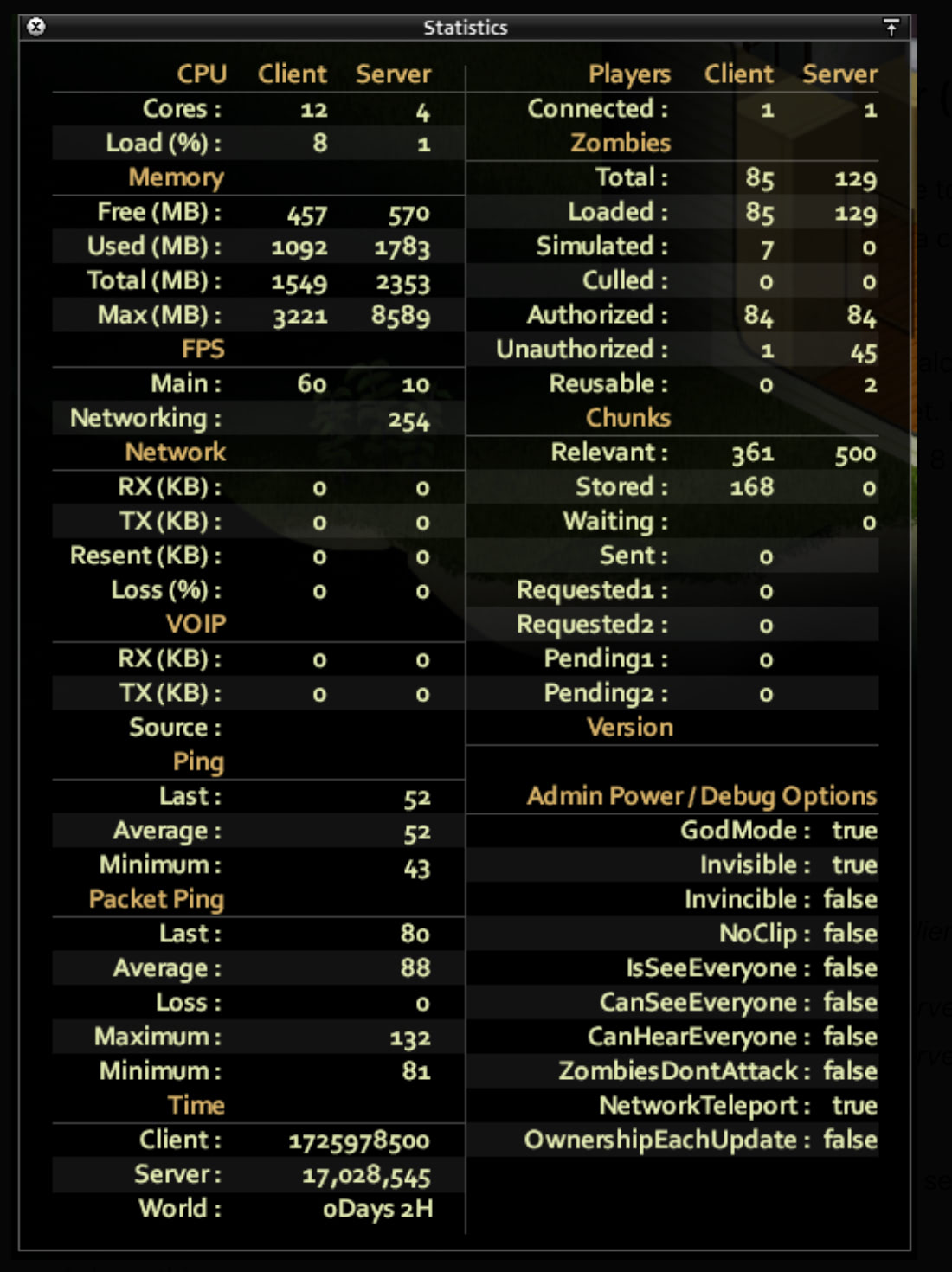
What healthy vs unhealthy looks like
- Normal: Used rises when chunks and activity load, then falls or plateaus after garbage collection / quieter periods.
- Under-sized heap: Used repeatedly presses Max; crashes with
OutOfMemoryError: Java heap space. - Likely leak or runaway load: Used trends upward across many hours even when players leave hot areas; restarts become the only recovery.
- OS view: Task Manager /
htopRSS can be higher than heap Max because of native libraries and off-heap use. Compare trends, not a single number match.
Client graphics settings are not server heap
Asking players to disable double-size textures or lower client quality can help their VRAM, client RAM, and sometimes network smoothness. It does not reduce the dedicated server’s Java heap in any reliable, direct way. Treat client display options and server -Xmx as separate budgets.
Garbage collectors: keep the package default
Do not assume every install uses the same collector, or that you should flip to ZGC first. Platform packages differ—some client builds ship ZGC, while dedicated start scripts may use another default.
For most admins: keep the collector that ships with your official start path. Only change GC flags if you can measure pause times and stability before and after. Oversized heaps with any collector can still produce longer stop-the-world work than a right-sized heap.
How much RAM? Use load signals, not a linear formula

/stats or the Admin Statistics panel after a busy session.
| Signal to watch | What to do |
|---|---|
| Peak Used ≪ Max under full player load | Heap is fine; chase CPU, disk, or network lag elsewhere if players still hitch |
| Peak Used within ~10–15% of Max | Raise Host memory / -Xmx one step, or cut simultaneous load (mods, pop, map spread) |
OutOfMemoryError in logs |
Raise heap and fix the crash trigger; do not only schedule restarts |
| Used grows for days with no plateau | Bisect mods, check population extremes, plan restarts while you isolate the cause |
| Host machine swapping / OS free RAM near zero | Lower -Xmx or move the server; the process cannot “borrow” swapped memory without lag |
Rough planning only (not guarantees): light co-op often lives near the 4 GB Host default; busy modded public servers commonly need higher Host steps or dedicated -Xmx in the mid–high single-digit gigabytes—or more—once measured. Always re-check after large Workshop changes.
Lag is not only memory
CPU and tick work
Hordes, vehicles, and script-heavy mods can saturate cores while heap still looks healthy. Lowering zombie pressure or moving bases off the hottest cells helps when Max memory is not the bottleneck.
Disk
Map chunks load from disk into RAM. SSDs reduce hitching when players open new areas; they do not replace adequate heap for what stays loaded.
Shared machine
Hosting while also gaming, streaming, or browsing on the same box competes for RAM and CPU. Cap the server heap so the OS still has free pages.
Scheduled restarts
Daily off-peak restarts clear long-lived caches and some leak growth. They are an operations tool, not a substitute for finding a bad mod or a too-small heap.
Mod and world load checklist
- Disable unused packs; huge weapon/item libraries raise baseline memory once loaded.
- Update or remove mods after a version jump if Used never recovers—check Workshop discussions for leak reports.
- Avoid extreme sandbox population + peak player count on the same host without measuring.
- After any large mod change, re-run a peak session and re-read Max / Used before advertising more slots.
Admin checklist
- Confirm how the process starts (Host UI vs dedicated script vs host panel).
- Set a realistic heap (Host default 4 GB is a baseline, not a forever limit).
- Grant Statistics access to trusted staff; use Show Statistics or
/stats—not/stopwatch. - Capture peak Used during real play; leave headroom under Max.
- Keep client graphics advice separate from server heap decisions.
- Pair memory work with backups and save policy from the admin tips guide so a crash is recoverable.
Related Articles