Project Zomboid Add Mods Mid-Game: Yes… But Don’t Nuke Saves

Project Zomboid: Add Mods Mid-Game
Most mods can be added to an existing save—just enable them on the save itself, expect new content in unvisited areas, and treat map/overhaul/removal changes as high-risk.
Try: enable on save, unvisited, server, Mod ID, Build 42, remove mods
Guide Sections
Core rule: enable mods on the save itself, then test. Content spawns usually need unvisited areas. Removing mods and map/world overhauls are the sharp edges.
Quick Answer
Yes—most mods can be added to an existing Project Zomboid save.
The two big caveats: you must enable the mod for the specific save, and new loot/vehicles/spawns usually won’t appear in areas you’ve already explored.
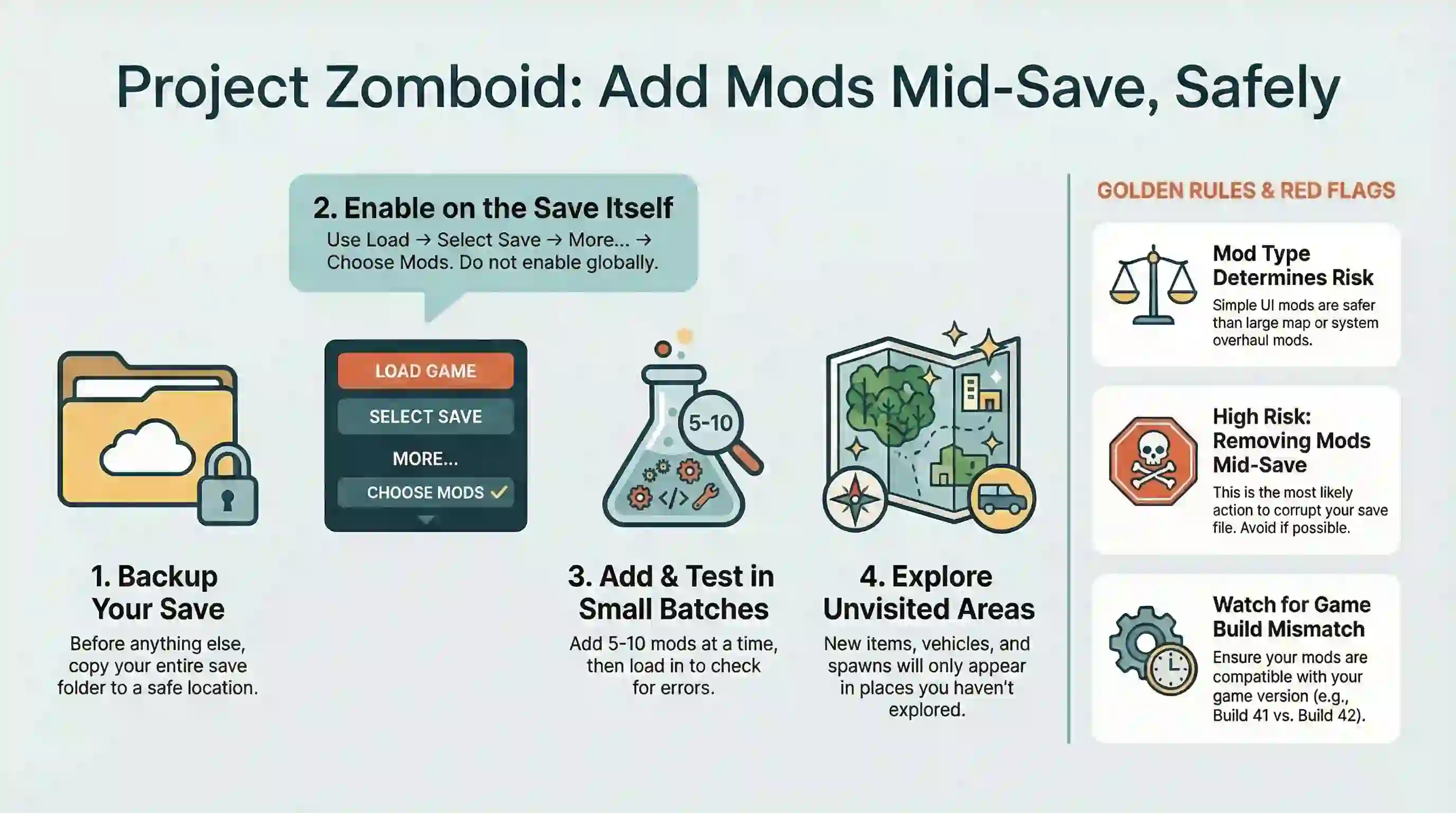
The high-risk edge cases are big map/world changes, removing mods mid-save, and mixing Build 41 saves/mods with Build 42 mods (or the other way around).
Quick-Start (Safest Path)
- Back up your save (copy the whole save folder somewhere safe).
- Confirm your branch/build (Build 41 vs Build 42) and that the mod matches it.
- From the main menu: Load → select your save → More… → Choose Mods → enable the mod(s) → confirm.
- Load the save and give it one in-game day to settle (some mods initialize on first load).
- If you’re adding content mods (items/vehicles/loot), travel to an unvisited area to see fresh spawns.
Tip: enabling a mod globally from the main menu is not the same as enabling it for an existing save—use Load on purpose.
The Big Rule: Mod Type Matters
A UI tweak is one thing. A world overhaul is another. Use the advisor to pick the closest match, then sanity-check the gotchas.
Step-by-Step: Add Mods Mid-Game (Singleplayer)
- Subscribe to the mod and let it finish downloading.
- In Project Zomboid, go to Load (not Continue).
- Select your save, then click More…
- Open Choose Mods (or Mods) and move the mod to Active.
- Confirm, then load the save.
- Once in-game, verify the mod initialized (many add an Options panel or UI element).
Pro tip: add mods in batches (5–10 at a time). Load in, walk around, check errors, then add the next batch.
Step-by-Step: Add Mods to an Existing Server
Adding mods mid-wipe is possible, but it’s a coordination problem:
- The server must load the mods.
- Clients must download the same Workshop items.
- Load order matters more (especially with map mods and frameworks).
High-level flow
- Back up the server save (and config) before changing anything.
- Add the Workshop IDs and Mod IDs to the server’s mod list.
- Restart the server and watch the console/log for errors.
- Have clients reconnect and verify they download the mods.
Use the Server Config Builder panel to assemble the two common lines: WorkshopItems=… and Mods=….
“I Enabled It… Why Isn’t Anything Spawning?”
Usually not a bug. Loot and vehicle spawns are tied to distributions that get rolled when an area is first generated/visited.
What works
- Go somewhere you’ve never been (new towns, new highways, or just beyond your explored edge).
- If loot respawn is enabled, wait for the respawn cycle (still won’t help everything).
- For vehicle mods, check unvisited parking lots and highways (distribution-heavy spawns).
What usually doesn’t
- Sleeping for a week and expecting old containers to re-roll loot.
- Toggling the mod on/off repeatedly (can make things worse).
Build 42 / Unstable: Extra Warnings
- Mod architecture and first-load behavior changed; after updates, re-check your save’s active mod list.
- Unstable updates can be disruptive; treat mod experiments as “test on a copy first.”
- For multiplayer, prioritize stability: back up saves and keep mod lists minimal unless everyone agrees to troubleshoot.
Troubleshooting: When a Mod Bricks the Save (or Spams Errors)
Triage order:
- Does the save load with the mod disabled? If yes, the mod (or a conflict) is the culprit.
- Check for missing dependencies (framework mods are common).
- Add mods in smaller batches to isolate the offender.
- Watch for build mismatch (Build 41 mod on Build 42, or vice versa).
- If you removed a mod mid-save, restore it (removal is often worse than adding).
If you’re in “error spam” territory
- Disable the newest 1–3 mods you added.
- Re-enable any mod you removed.
- Verify the game files (Steam) if base assets are missing.
- Confirm the mod’s required dependencies and load order.
FAQ
Can I add mods mid game in Project Zomboid?
Yes in most cases—especially QoL/UI mods and many item/vehicle mods—if you enable them on the save itself and you accept that new loot often shows up in unvisited areas.
Do I have to start a new save?
Only if the mod says so, or if it’s a major map/system overhaul where retrofitting is more pain than it’s worth.
Is it safe to remove mods mid-save?
Sometimes, but it’s the highest-risk move. If your character/world is using items or scripts from that mod, the save may not load or you may get missing-content errors.
Why did my mods disable after an update (especially on B42)?
Build 42-era changes can alter mod behavior and, in some cases, mods may be auto-disabled on first load after an update. Re-check your save’s active mod list after patching.
Action Steps Recap
Back up your save, enable mods via Load → More… → Choose Mods, then test in small batches and look for new content in unvisited areas.